How to install SillyTavern on Windows and run it with a local model (Ollama)
By Cyril · Updated · Checked with SillyTavern 1.19.1, Ollama 0.40, Windows 11
Short answer
Install Node.js and Git, run git clone https://github.com/SillyTavern/SillyTavern -b release in a normal folder, double-click Start.bat, then in API Connections choose Text Completion, API Type Ollama and the URL http://127.0.0.1:11434. Raise the context size in SillyTavern, because Ollama only allows 4k tokens by default on GPUs under 24 GB.
SillyTavern is a free, open-source interface for AI roleplay. It runs as a small local web server and opens in your browser. It does not include a model: you plug it into one. This guide installs SillyTavern the official way and connects it to a free model running on your own PC with Ollama, so nothing leaves your computer.
We followed every step below on 23 November 2026 on a Windows 11 laptop with an RTX 5060 Laptop GPU (8 GB), using SillyTavern 1.19.1, the release published on 19 November 2026.
What you need
- Windows 10 or 11. Windows 7 cannot run SillyTavern, because it cannot run Node.js 20 (official docs).
- Node.js 20 or newer. SillyTavern 1.19.1 declares
"node": ">= 20"in its package file. The docs recommend the latest LTS version. - Git for Windows, to download SillyTavern and update it later.
- Ollama, if you want a free local model (step 4).
Step 1: pick a safe folder
Create a folder that Windows does not control, for example C:\labo-roleplay. The official docs are explicit: do not install into Program Files, System32 or similar folders, and do not run Start.bat as administrator.
Step 2: download SillyTavern with Git
Open the folder in File Explorer, click the address bar, type cmd and press Enter. In the black window, type:
git clone https://github.com/SillyTavern/SillyTavern -b releaseThe release branch is the stable one. (staging gets new features first, and new bugs with them.)
Step 3: start it
Open the new SillyTavern folder and double-click Start.bat. The first start installs what SillyTavern needs, creates its settings file (config.yaml) and copies the default presets. On our laptop this took under a minute. When the console shows Go to: http://127.0.0.1:8000/, SillyTavern opens in your browser.
On the welcome screen, choose a persona name: it is the name your character will call you.
Step 4: connect a free local model with Ollama
Install Ollama from ollama.com, then download a model in a terminal, for example:
ollama pull qwen3.5:9bIn SillyTavern, click the plug icon (API Connections) at the top, then set:
| Setting | Value |
|---|---|
| API | Text Completion |
| API Type | Ollama |
| API URL | http://127.0.0.1:11434 |
| Ollama Model | the model you pulled |
Click Connect. A green dot with the model name means it worked.
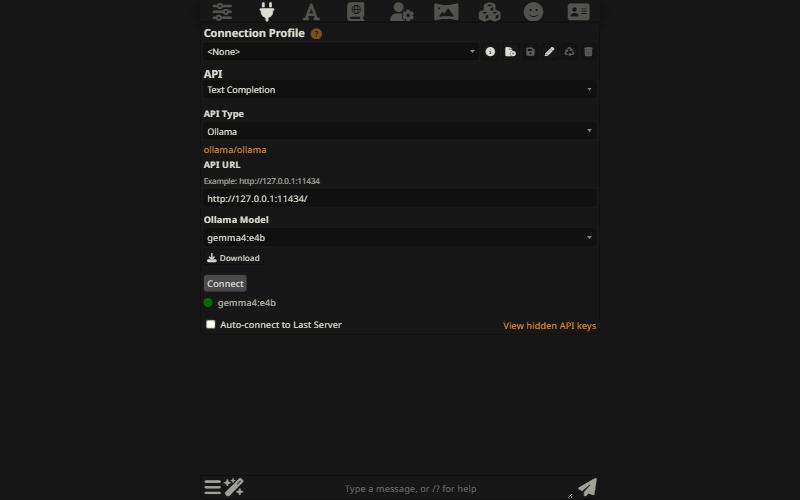
Our own screenshot, SillyTavern 1.19.1 connected to Ollama on 23 November 2026.
Step 5: fix the context size (the trap almost every guide misses)
Context is how much of the conversation the model can see at once. Ollama’s documentation says it defaults to 4k tokens on any GPU with less than 24 GB of video memory. In a long roleplay, 4k tokens fills up fast and the character starts forgetting the beginning of the story.
SillyTavern sends its own context size to Ollama with each request (we checked: SillyTavern 1.19.1 passes it as Ollama’s num_ctx setting). So set it in SillyTavern: open AI Response Configuration (the sliders icon, top left) and raise Context (tokens), for example to 8192.
A bigger context needs more video memory. To check what really happened, run this in a terminal while a chat is open:
ollama psThe PROCESSOR column shows how the model is split. In our lab, a 9B model with an 8,192-token context showed 12% CPU / 88% GPU on an 8 GB card: it already spilled slightly into system memory, which makes it slower. The CONTEXT column confirms the context actually in use.
Step 6: update SillyTavern later
Close the console window, open a command prompt in the SillyTavern folder and run:
git pullThen start Start.bat again. Check the release notes on GitHub first: version 1.18 fixed security issues, so staying current matters.
If something goes wrong
| Problem | What to check |
|---|---|
git is not recognised |
Git for Windows is not installed, or the command prompt was opened before installing it. Close it and open a new one. |
| Start.bat closes immediately | Node.js is missing or older than version 20. Install the current LTS version. |
| Connect stays red | Ollama is not running. Start the Ollama app, or run ollama serve, and check the URL http://127.0.0.1:11434. |
| Replies get slow after a while | The context no longer fits in video memory. Lower the context size or use a smaller model, then check ollama ps. |
Questions people ask
Is SillyTavern itself an AI?
No. SillyTavern is a free interface for chatting and roleplaying with AI characters. It has no model inside: you connect it to a model running on your own computer (such as Ollama) or to an online API.
Do I need a powerful PC?
Not for SillyTavern itself, which is a small Node.js server. The model is what needs memory. On our 8 GB laptop GPU, a 9-billion-parameter model (Qwen3.5 9B) ran at a median of 47.5 tokens per second once loaded.
Can I run Start.bat as administrator?
No. The official documentation says not to run Start.bat with admin permissions and not to install SillyTavern in Windows-controlled folders such as Program Files.
Sources
- SillyTavern docs: Windows installation (read 2026-11-23)
- SillyTavern 1.19.1 release on GitHub (read 2026-11-23)
- Ollama docs: context length (read 2026-11-23)